
The DocsPress: Was This Helpful? block gives every documentation Page a small Helpful or Not helpful prompt. WordPress stores aggregate totals with the Page, while editors can review the score and hide the prompt without deleting earlier responses.

Understand the response flow
-
A reader chooses a response
The published block sends Helpful or Not helpful to the Page-specific DocsPress REST endpoint.
-
WordPress validates the Page
The endpoint accepts responses only for a published, public Page. Password-protected and unavailable Pages reject the request.
-
The Page totals are updated
WordPress increments the aggregate Helpful or Not helpful metadata and returns the new counts without caching the response.
-
The browser remembers its choice
The selected response is saved in local storage. The buttons remain selected and disabled when that browser returns to the same Page.
-
An editor reviews the signal
The Page editor shows the helpful rate, both counts, and the total in its Page feedback panel.
Add or move the block
The bundled Page template includes the block by default, immediately before DocsPress: Adjacent Navigation.
To change its placement for every Page:
- Open Appearance → Editor.
- Choose Design → Templates → Page.
- Open List View and select DocsPress: Was This Helpful?.
- Move the block, or insert another instance from the block inserter.
- Select Save and confirm the Page template change.
Removing the block or turning off Enabled hides the prompt everywhere that template is used. Existing Page totals are preserved.
Customize the prompt
Select the block in the Site Editor and open Settings → Page feedback. The text controls change the published prompt and its completed state.
Was This Helpful block settings
docspress/was-this-helpful.-
enabledboolean -
Shows the prompt and accepts responses on public Pages that use this template.
-
questionstring -
Question shown before the response buttons.
-
helpfulLabelstring -
Label for the Helpful response.
-
unhelpfulLabelstring -
Label for the Not helpful response.
-
thanksMessagestring -
Live status announced and displayed after WordPress saves a response.
No fields match this filter.
Use the block’s Styles panel for native text, background, link, and gradient colors; typography; padding and margin; block spacing; borders and radius; minimum height; positioning; shadow; anchor; and custom CSS classes. Global Styles can set the default for every instance, while block-level changes affect only the selected template instance.
Review feedback for one Page
Open Pages, edit the documentation Page, show the editor’s Settings sidebar, and expand Page feedback. The panel displays the Helpful rate, Helpful and Not helpful counts, and total responses. Totals are read-only in the editor.
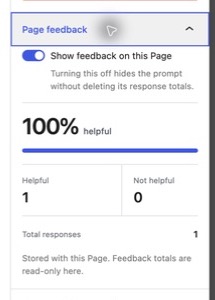
Turn off Show feedback on this Page when a particular Page should not ask for feedback. Save the Page to apply the change. Turning the setting back on restores the prompt with its earlier totals intact.
The per-Page control takes precedence over the template block: a Page with feedback disabled remains hidden even when the block itself is enabled.
Know what WordPress stores
Page feedback metadata
page post type.-
docspress_helpful_votesnumber -
Aggregate Helpful responses for the Page.
-
docspress_unhelpful_votesnumber -
Aggregate Not helpful responses for the Page.
-
docspress_feedback_enabledboolean -
Whether the Page can render the feedback prompt.
No fields match this filter.
The feature stores aggregate counts, not a visitor identity or comment. The browser separately stores docspress-feedback:<page-id> with the selected vote so it can restore the completed state.
Inspect the REST exchange
The block sends a public POST request to the Page-specific endpoint. This example remains intentionally non-runnable because it modifies Page metadata.
/wp-json/docspress/v1/feedback/123
Accept application/jsonContent-Type application/json{
"vote": "helpful"
}{
"saved": true,
"vote": "helpful",
"counts": {
"helpful": 8,
"unhelpful": 2,
"total": 10
}
}The request accepts only helpful or unhelpful. It returns 404 for a Page that is missing, unpublished, or not a Page; 403 for a password-protected Page; 400 for an invalid vote; and 500 when WordPress cannot update the counter. Successful responses include Cache-Control: no-store.
Extend recorded responses
DocsPress fires docspress_page_feedback_recorded after a response is saved. Use it to forward the aggregate event to an analytics or reporting integration without changing the block.
add_action( 'docspress_page_feedback_recorded', function ( $page_id, $vote, $counts ) { // Forward the aggregate event to your reporting system. }, 10, 3);If the public endpoint needs stricter abuse controls, add them at the WordPress or hosting layer and test that normal anonymous readers can still submit a response.
Accessibility behavior
The response buttons form a labelled group tied to the visible question. The selected button uses aria-pressed, saving and error states are announced through a live status region, and keyboard focus remains visible. On narrow screens the prompt and actions stack vertically, and reduced-motion preferences remove nonessential transitions.